Profile setup
Before the tone test starts, the app collects a short profile so the results can be saved against your name and reviewed by an audiologist.
Opening the profile form
After pressing START YOUR FREE HEARING TEST on the landing page you are
taken to /setup-profile. The page shows a short explanation followed by
three text fields, a primary button and a consent checkbox.
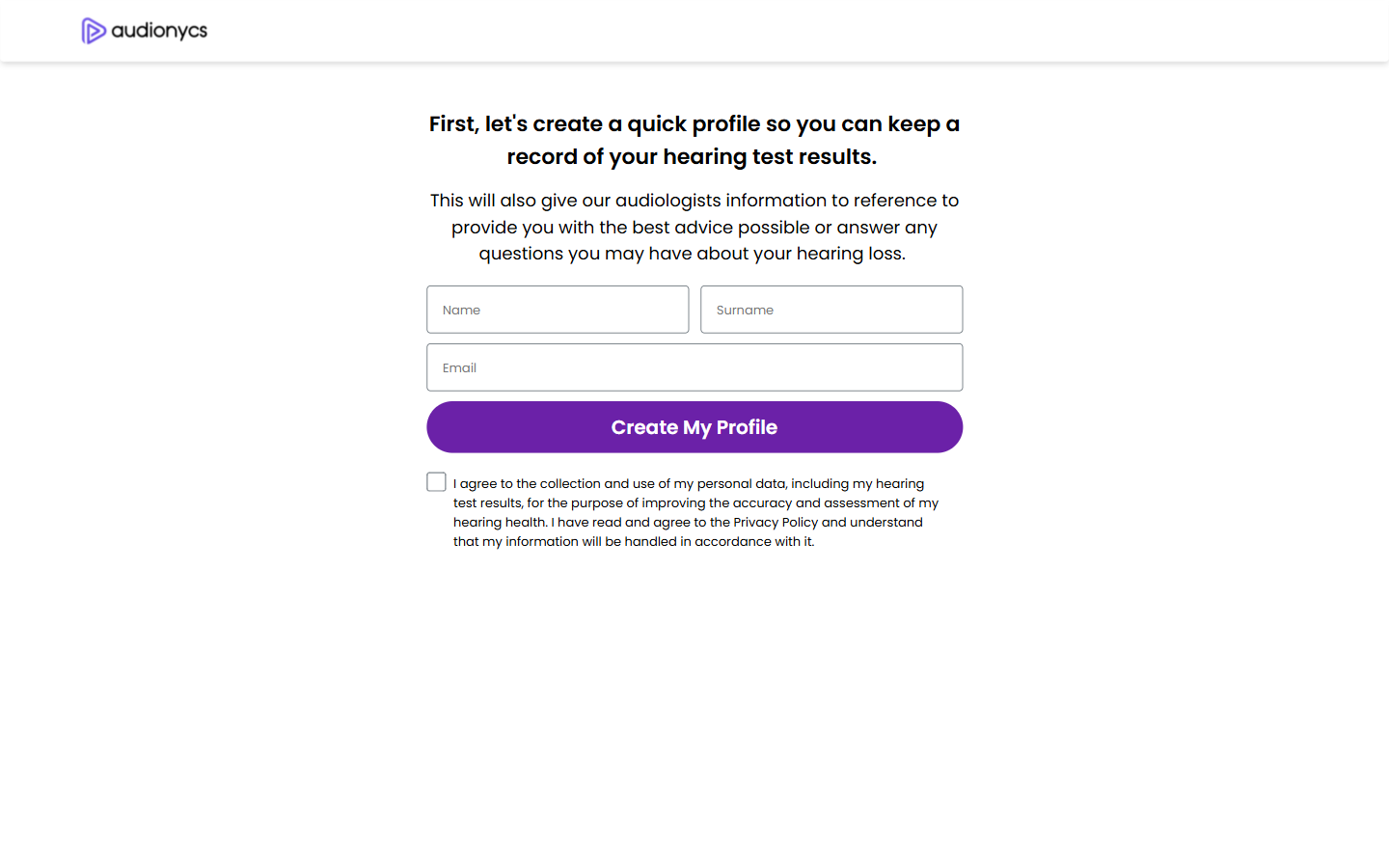
Profile form (empty state).
Fields
| Field | Required | Notes |
|---|---|---|
| Name | Yes | Used in the header of your results page (e.g. John's hearing test results). |
| Surname | Yes | Stored with your profile for the audiologist review. |
| Yes | Used to retrieve your results later and to contact you about the test. | |
| Consent checkbox | Yes | You must tick the consent box below the button to confirm you have read the Privacy Policy and agree to the use of your data for improving hearing-health assessment. |
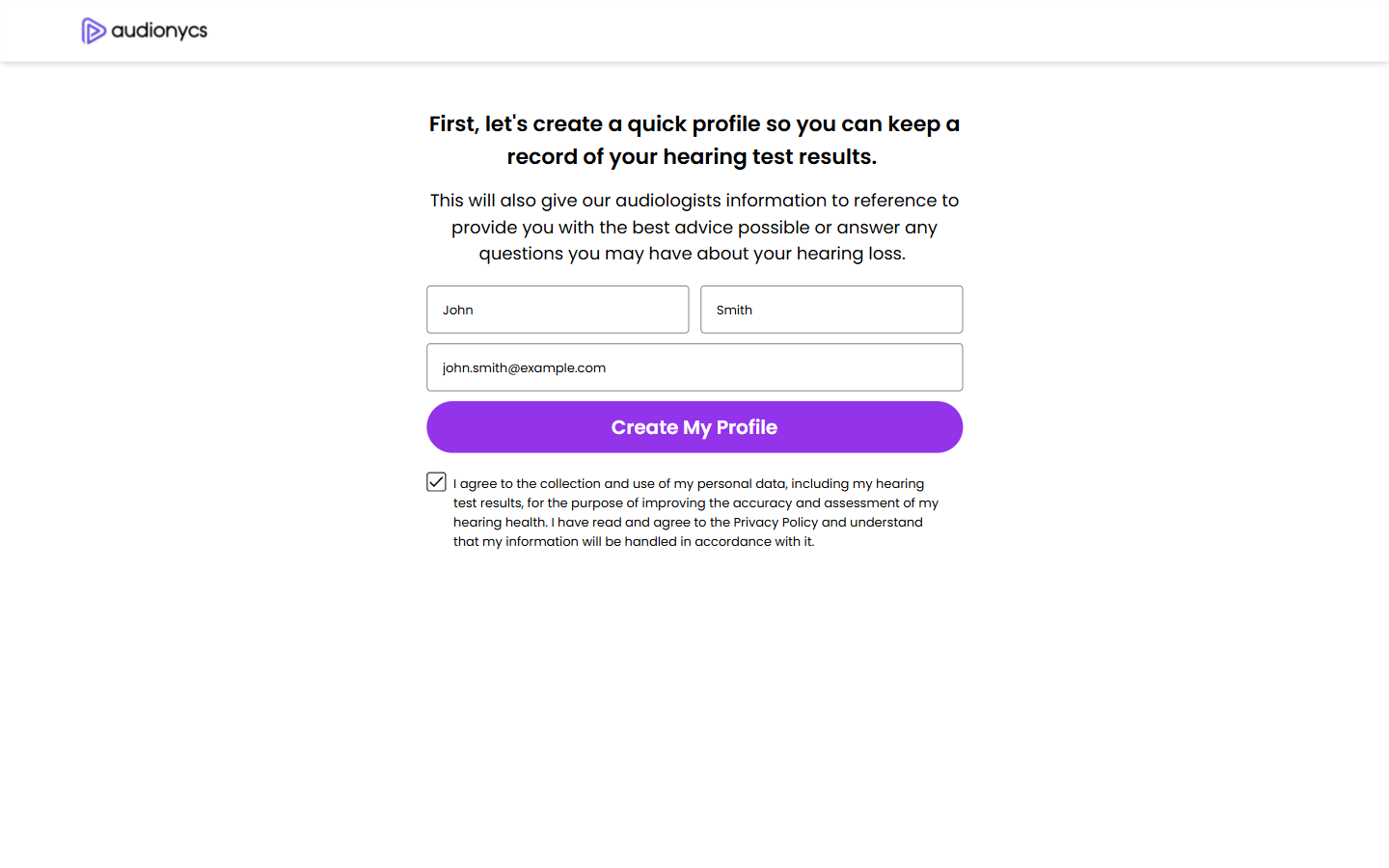
Profile form: valid, ready to submit.
The Create My Profile button only proceeds once all three text fields are filled in and the consent checkbox is ticked. Without consent, the app cannot store your results.
Your name personalises the results page and any follow-up from the audiologist team, and your email lets them contact you if they want to share additional guidance based on your audiogram.
When the form is complete, press Create My Profile. You are redirected
to /hearing-test and the tone test preparation begins.